Contents
Install on Mac
Download and install Pangolin for Mac, allow its system extension and VPN configuration, and make your first connection.
- Requires macOS 12 or later
- The app is notarized by Apple, so it opens normally
Step 1: Download and move it to Applications
- In the Download section, click Download on the macOS card to get a
.zipfile; - Double-click it to unzip the Pangolin app;
- Drag the app into your Applications folder and open it from there.
It has to run from Applications: Pangolin works as a system extension on Mac, and macOS only loads system extensions from apps in the Applications folder.
The first time you open it, macOS may warn that the app was downloaded from the internet. Click Open.
Step 2: Sign up or log in
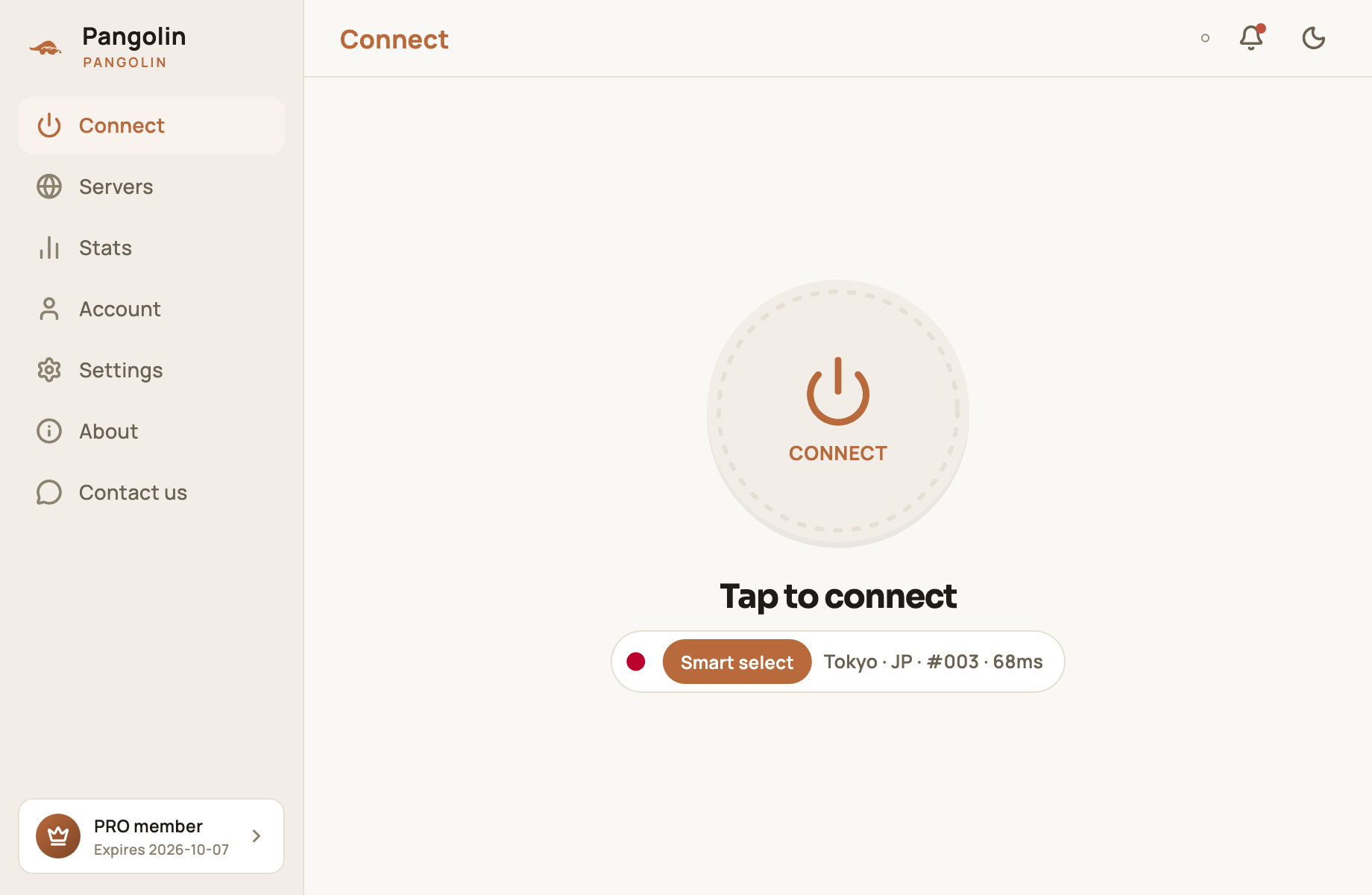
Sign up or log in on the sign-in screen — it’s the same account you use on your phone. The Mac app has a sidebar on the left and the content on the right.
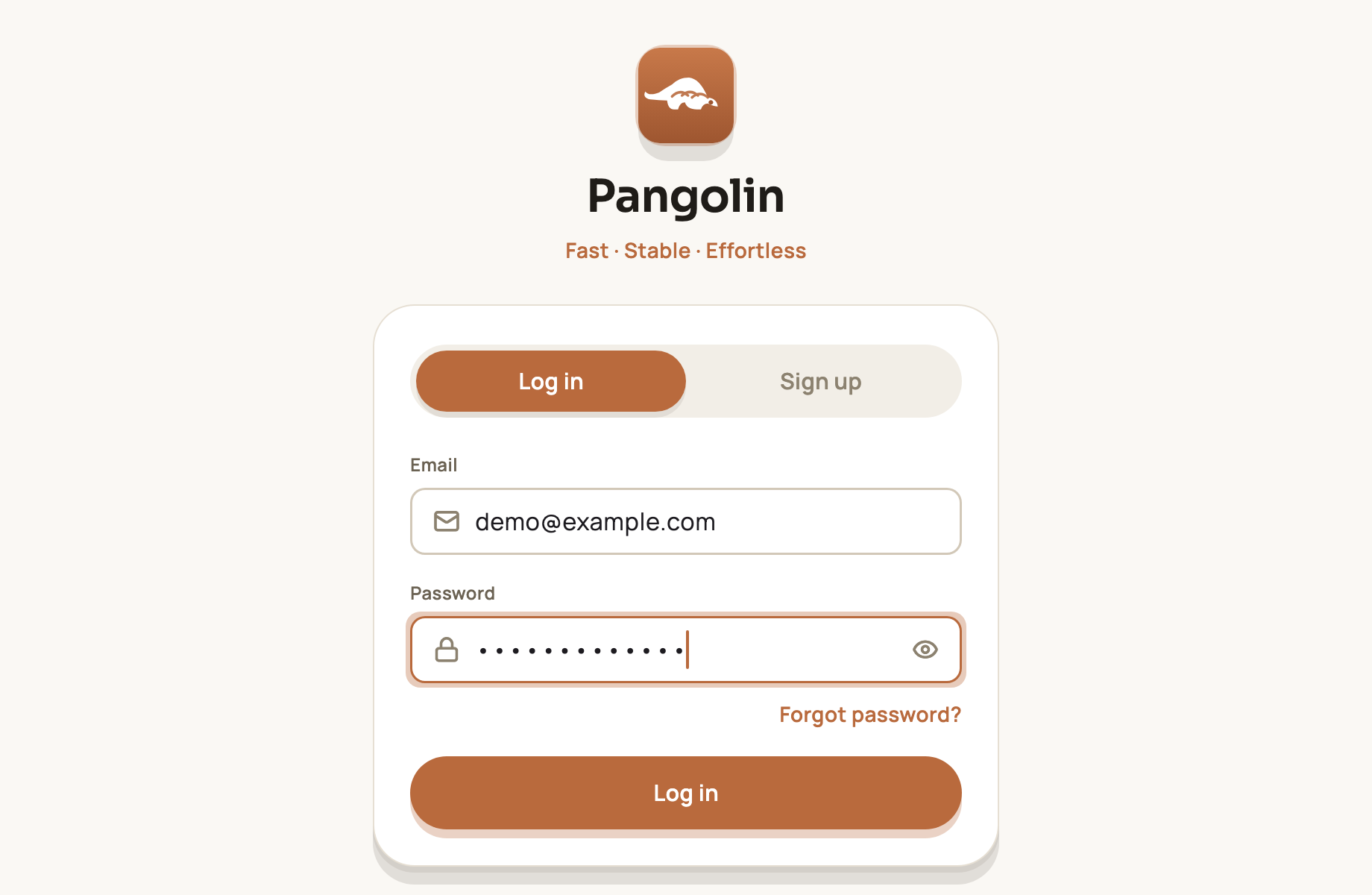
See Accounts, sign-in and security for the sign-up steps.
Step 3: Allow the system extension on first connect
Click the button in the middle of the Connect screen. The first time, macOS shows two kinds of prompts:
- System Extension Blocked: open System Settings and allow Pangolin — where depends on your macOS version:
- macOS 15 or later: General → Login Items & Extensions, then turn Pangolin on under Network Extensions;
- macOS 13 / 14: Privacy & Security, then click Allow next to the message near the bottom;
- macOS 12: Security & Privacy → General, then click Allow.
- “Pangolin” Would Like to Add VPN Configurations: click Allow, then enter your Mac password or use Touch ID.
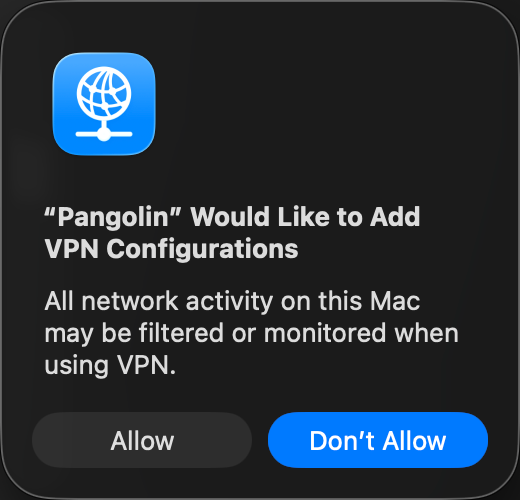
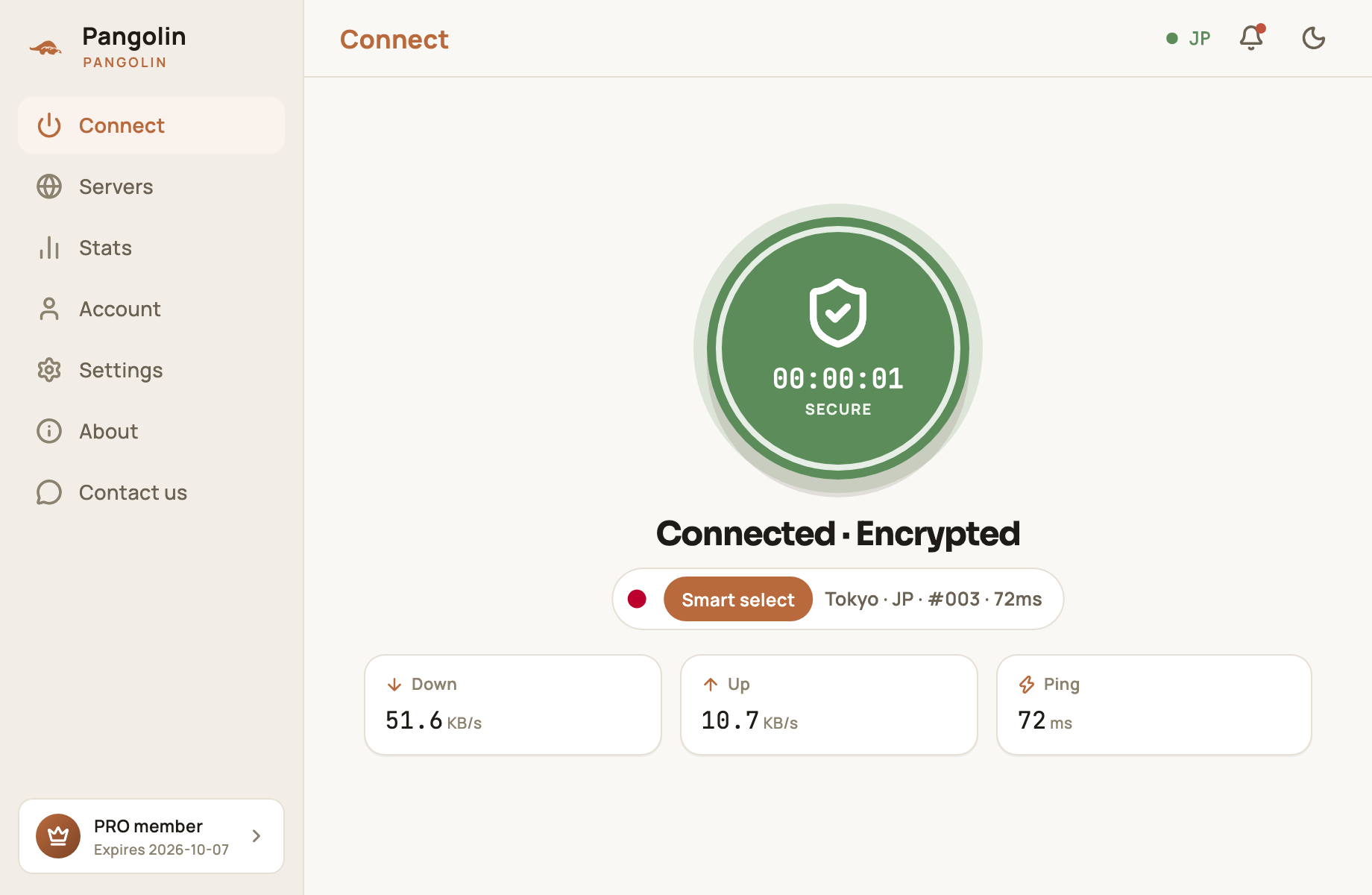
Then go back to the app and click Connect again. When the button turns green and reads Connected · Encrypted, you’re connected.
A tour of the Mac app
| Sidebar item | What it’s for |
|---|---|
| Connect | Connect / disconnect; see speed, latency and the current server |
| Servers | See every server and its latency; switch by hand |
| Stats | Data and time usage |
| Account | Membership, buying and redeeming, points and invites |
| Settings | Account, connection options, language and appearance |
| About | Check for updates, Terms of Service and Privacy Policy |
| Contact us | Support channels and feedback |
The bottom-left corner shows your membership and when it expires. At the top right, the dot shows connection status (a green dot with a country code means you’re connected), next to the notification bell and the light/dark toggle.
Launch at startup and auto-connect
Under Settings → Connection:
- Launch at startup: open Pangolin automatically when you log in to your Mac;
- Auto-connect: connect as soon as the app opens.
Turn both on and your Mac connects the moment you log in. Every option is explained in Settings explained.
Troubleshooting
| Problem | What to do |
|---|---|
| Connecting keeps failing and no system prompt appears | Make sure the app is in the Applications folder, and check in System Settings that Pangolin’s system extension is allowed |
| macOS says the app “is damaged and can’t be opened” | Download it again from our website — don’t use copies from third-party sites |
| Can’t connect after updating | Quit and reopen the app; if macOS asks you to allow the system extension again, repeat step 3 |
FAQ
Why does the app have to be in the Applications folder?
On Mac, Pangolin runs as a system extension, and macOS only loads system extensions from apps in the Applications folder. Running it from Downloads or the Desktop means it can't connect.
Is a system extension safe?
System extensions are Apple's standard mechanism for networking apps. They have to be notarized by Apple and only turn on after you allow them yourself.
Do I have to allow it again after updating?
Usually not. After some major updates macOS may ask again — just allow it the same way as in step 3.
Don't have Pangolin yet?
Available for iPhone / iPad, Mac, Windows and Android. New accounts get a free 7-day Pro trial.
Download the app