Contents
Connecting and switching servers
What everything on the Connect screen means, how Smart select works, how to pick and switch servers yourself, and what happens when a server has problems.
The screenshots here are from the iPhone and Mac apps. Android looks the same as iPhone, and Windows looks the same as Mac.
The Connect screen at a glance
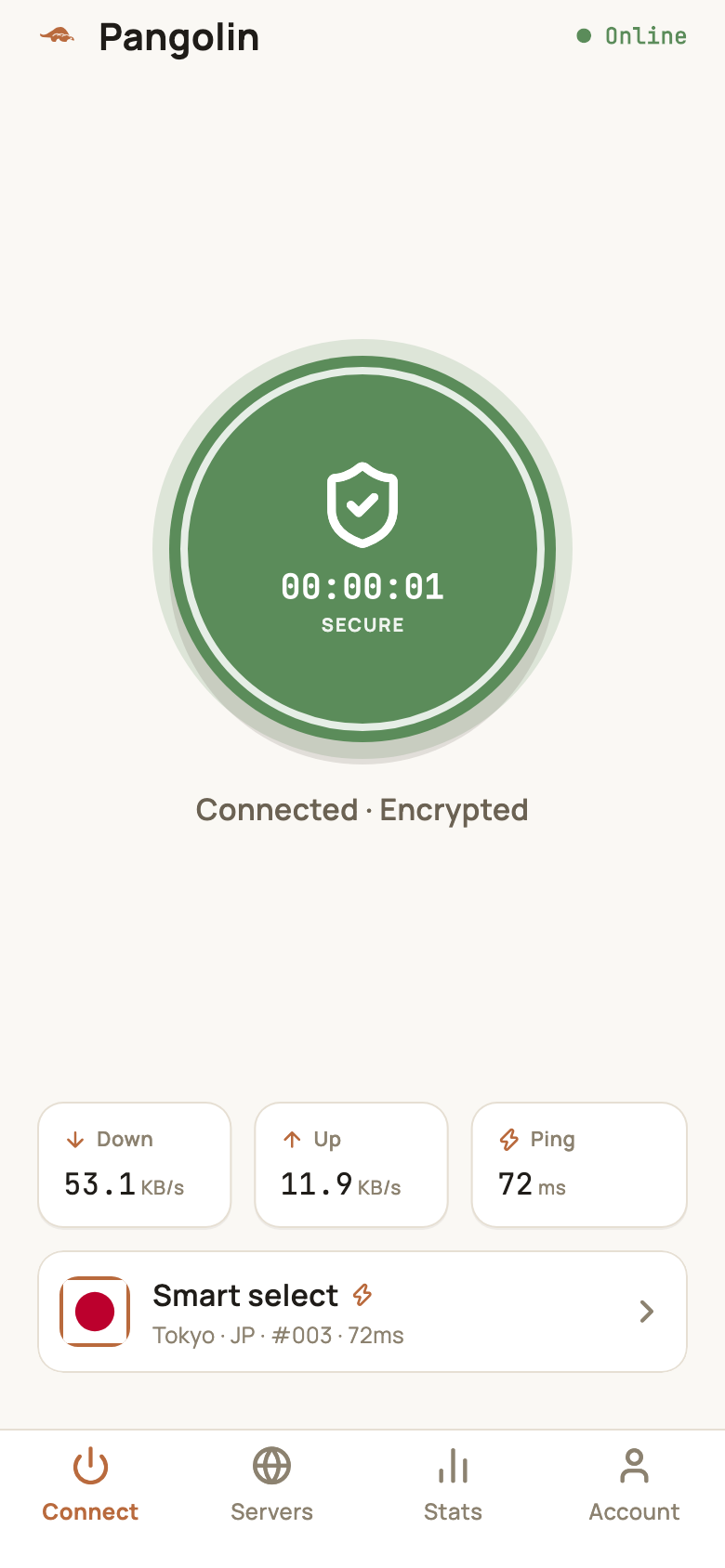
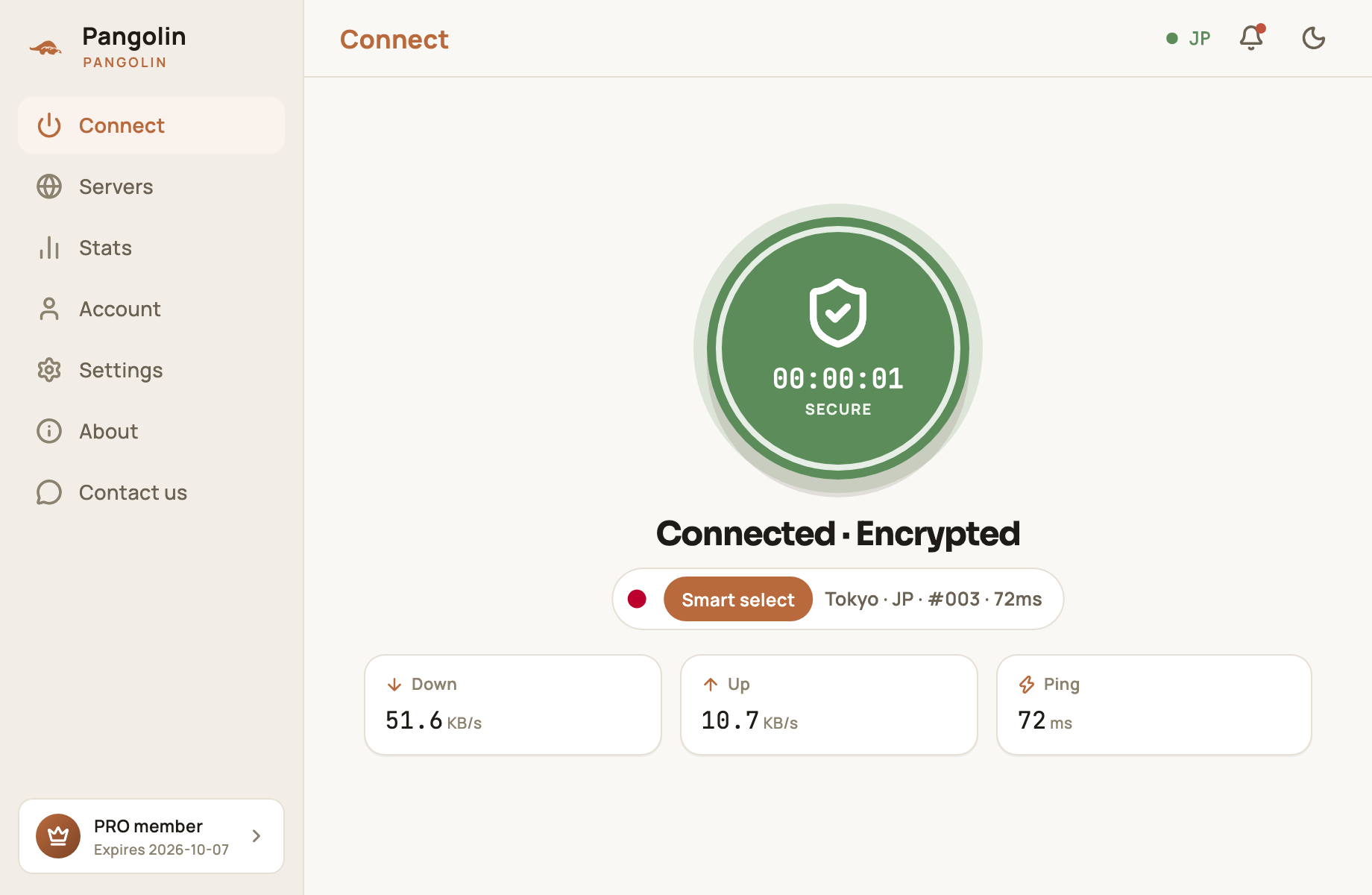
| Element | What it means |
|---|---|
| The big button | Tap to connect or disconnect. Grey means disconnected, green means connected; the timer shows how long this session has been running |
| Status text | Tap to connect, Connecting… or Connected · Encrypted |
| Down / Up | Your current download and upload speed |
| Ping | Round-trip time to a test address through the encrypted tunnel, in milliseconds (ms). Lower is faster |
| Server card | The server you’re using, its number and ping. Tap it to open the server list |
| Top-right status | Online / Offline on phones; on Mac, a green dot with the country code (e.g. JP) |
Connect and disconnect
To connect, tap the button in the middle. The status changes to Connecting… and then Connected · Encrypted. The first time, your system asks you to allow the VPN configuration — see the install guide for your platform.
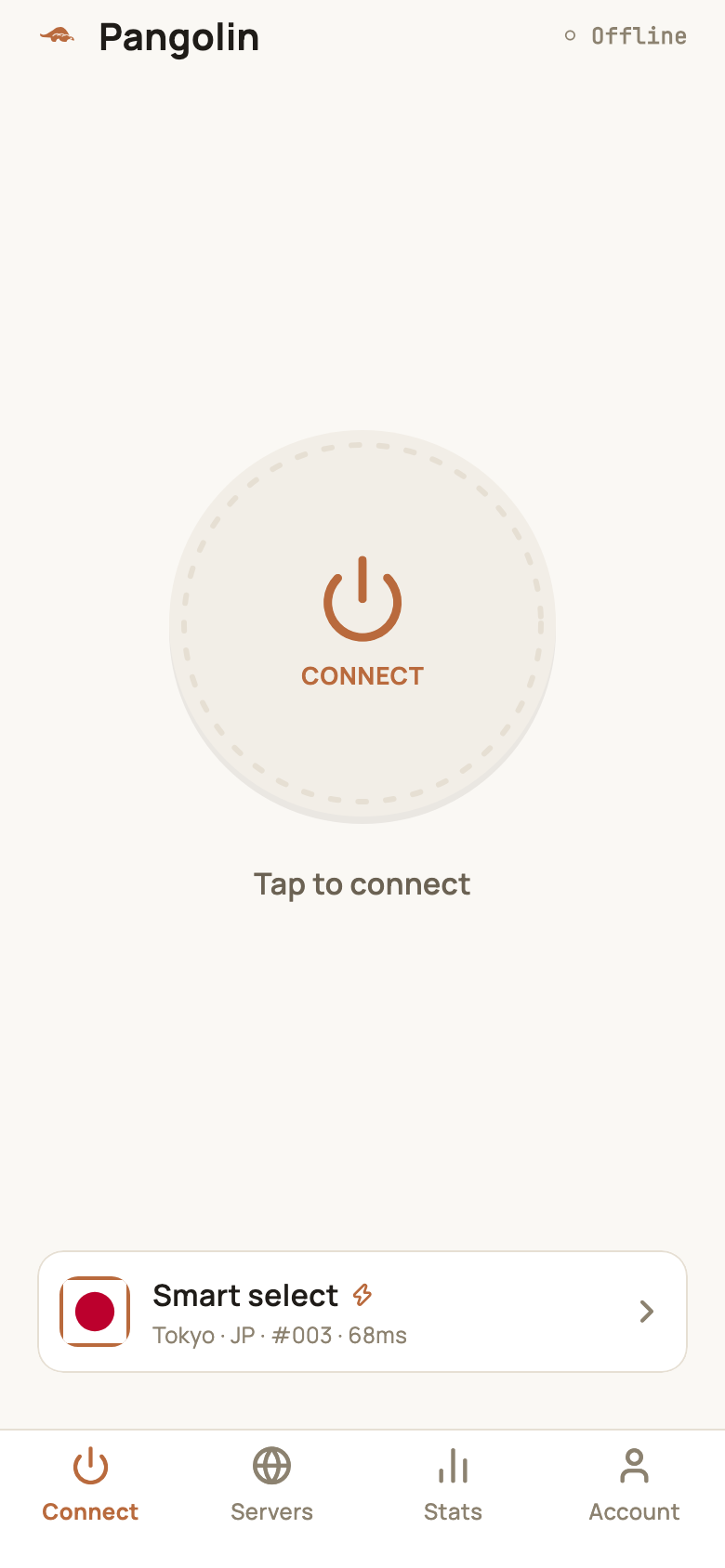
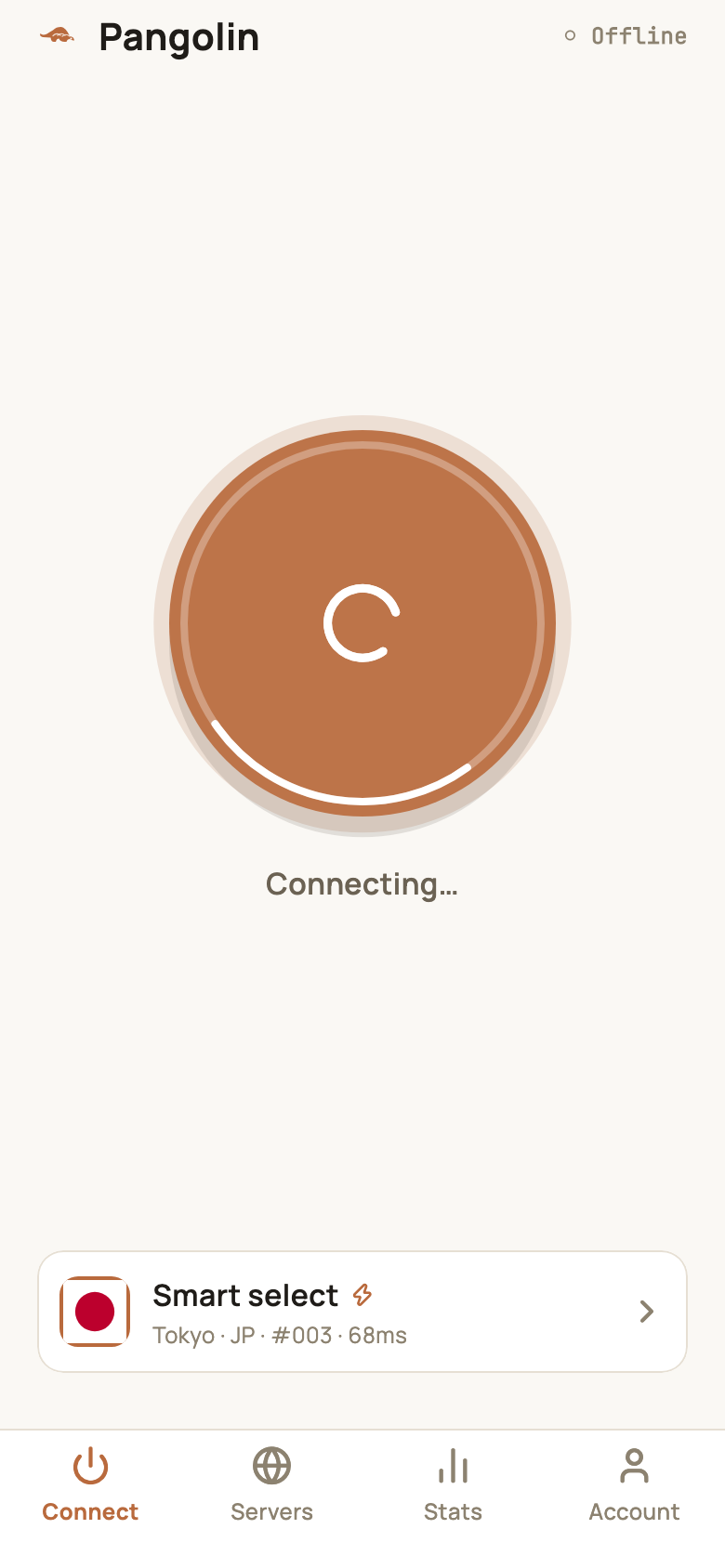
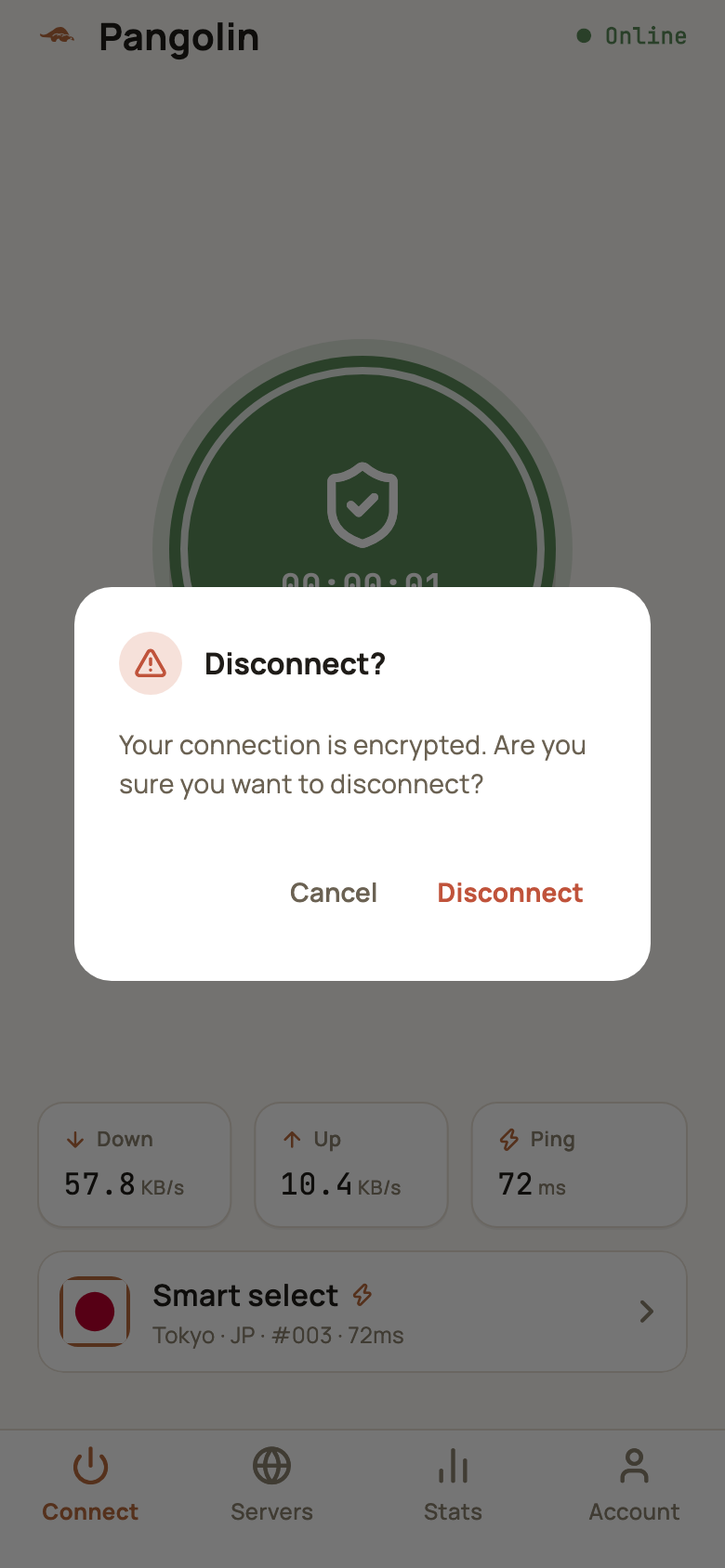
To disconnect, tap the button again while connected. A Disconnect? prompt appears — tap Disconnect.
Smart select: the fastest server, automatically
By default the server card shows Smart select. Pangolin checks your current network, picks the server with the lowest ping, and shows which one it chose on the card — for example “Tokyo · JP · #003”.
Most of the time you can leave it on Smart select and never think about servers.
Pick a server yourself
Tap Servers at the bottom (in the sidebar on Mac) to open the server list:
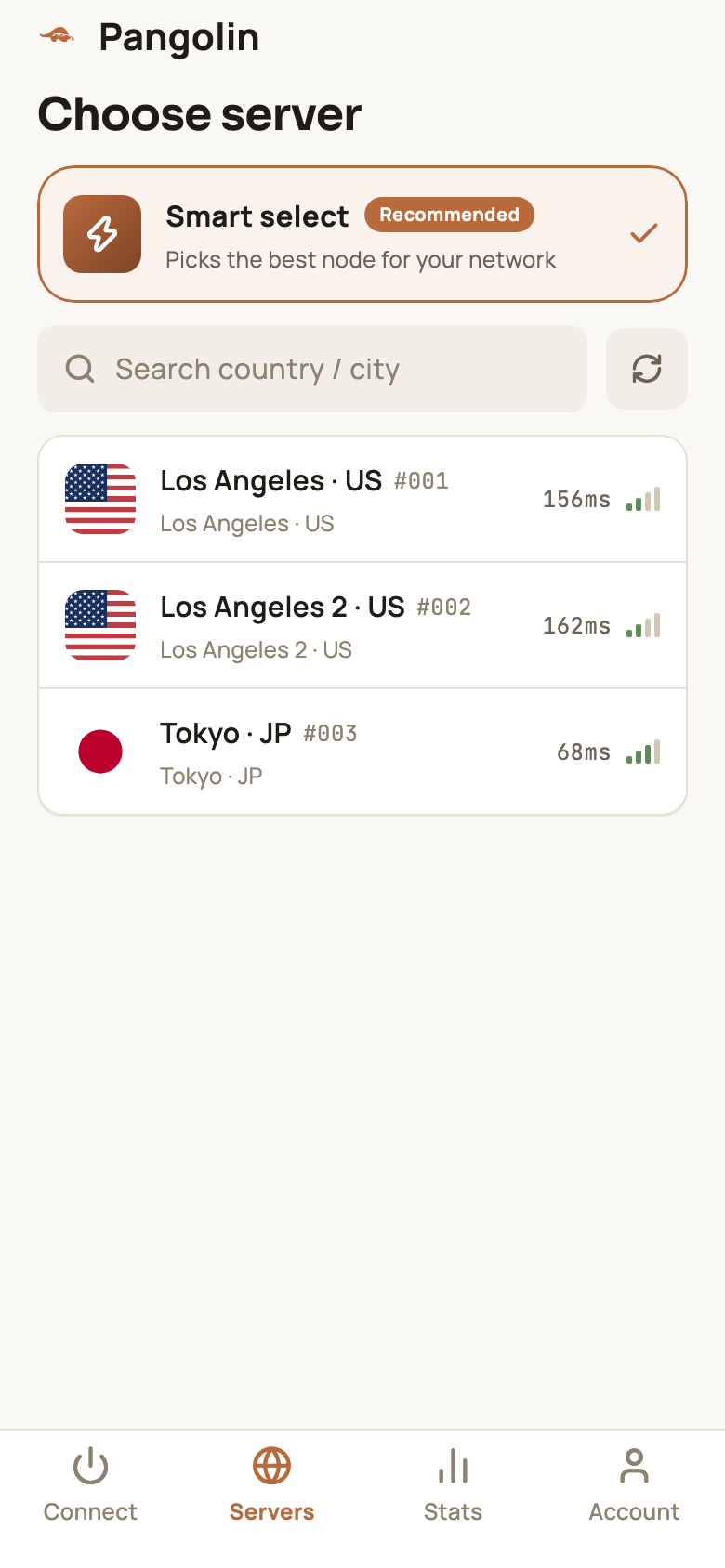
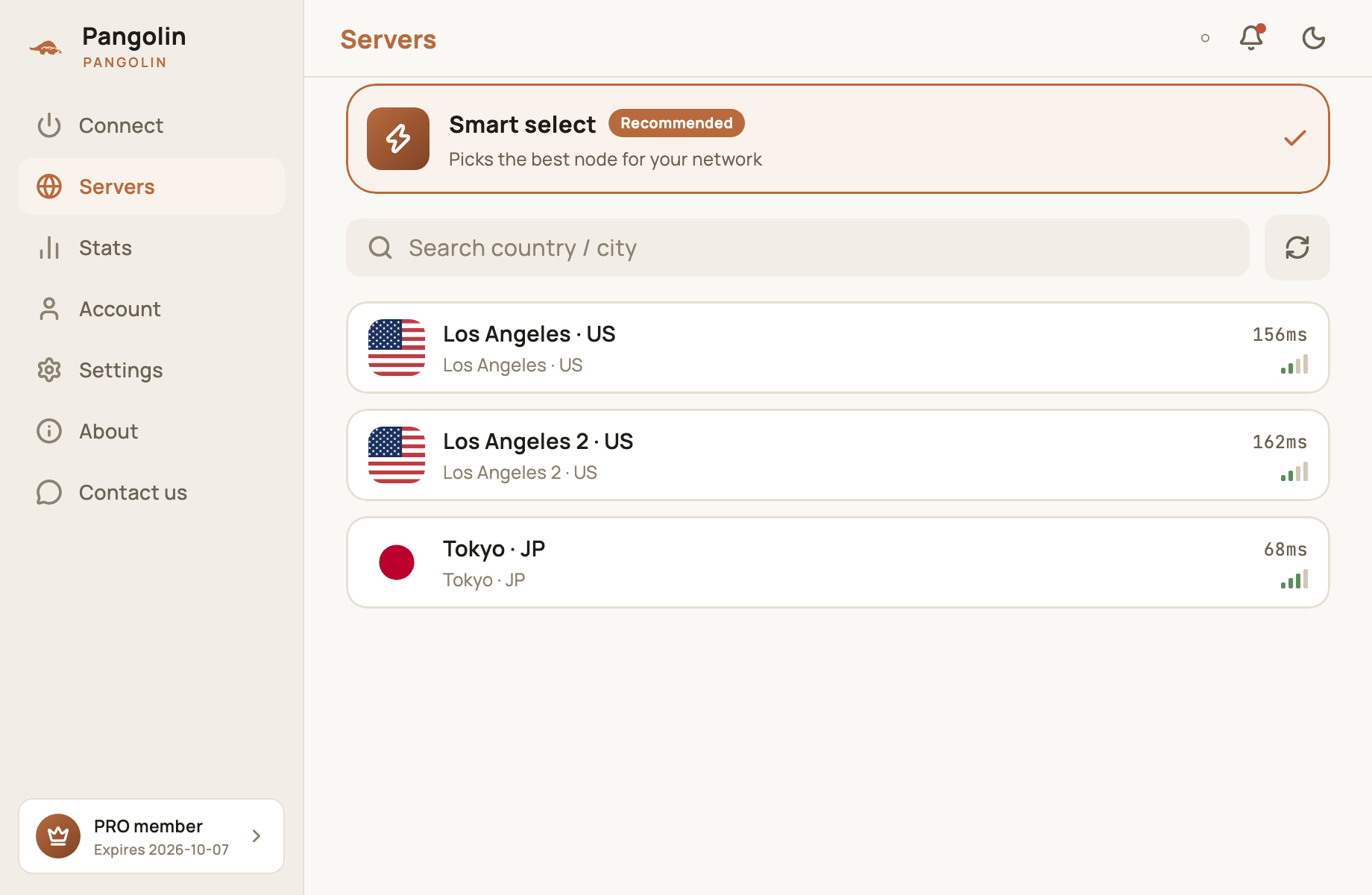
- Smart select sits at the top, marked Recommended;
- Below it are all servers, each with its country / city, number (e.g. #001), ping and signal bars;
- Use the search box to filter by country or city; the refresh button next to it re-measures every server’s ping.
Tap a server to select it.
Switch servers
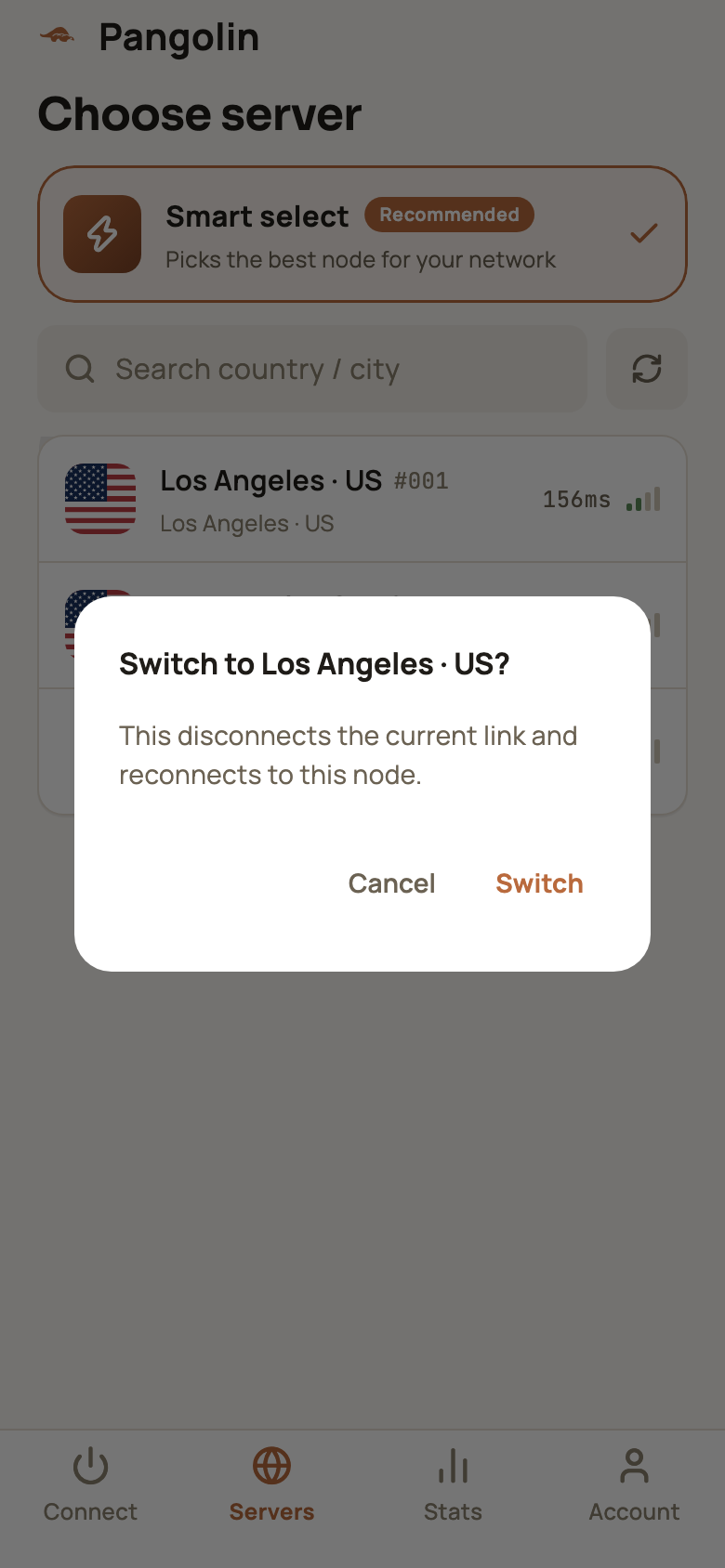
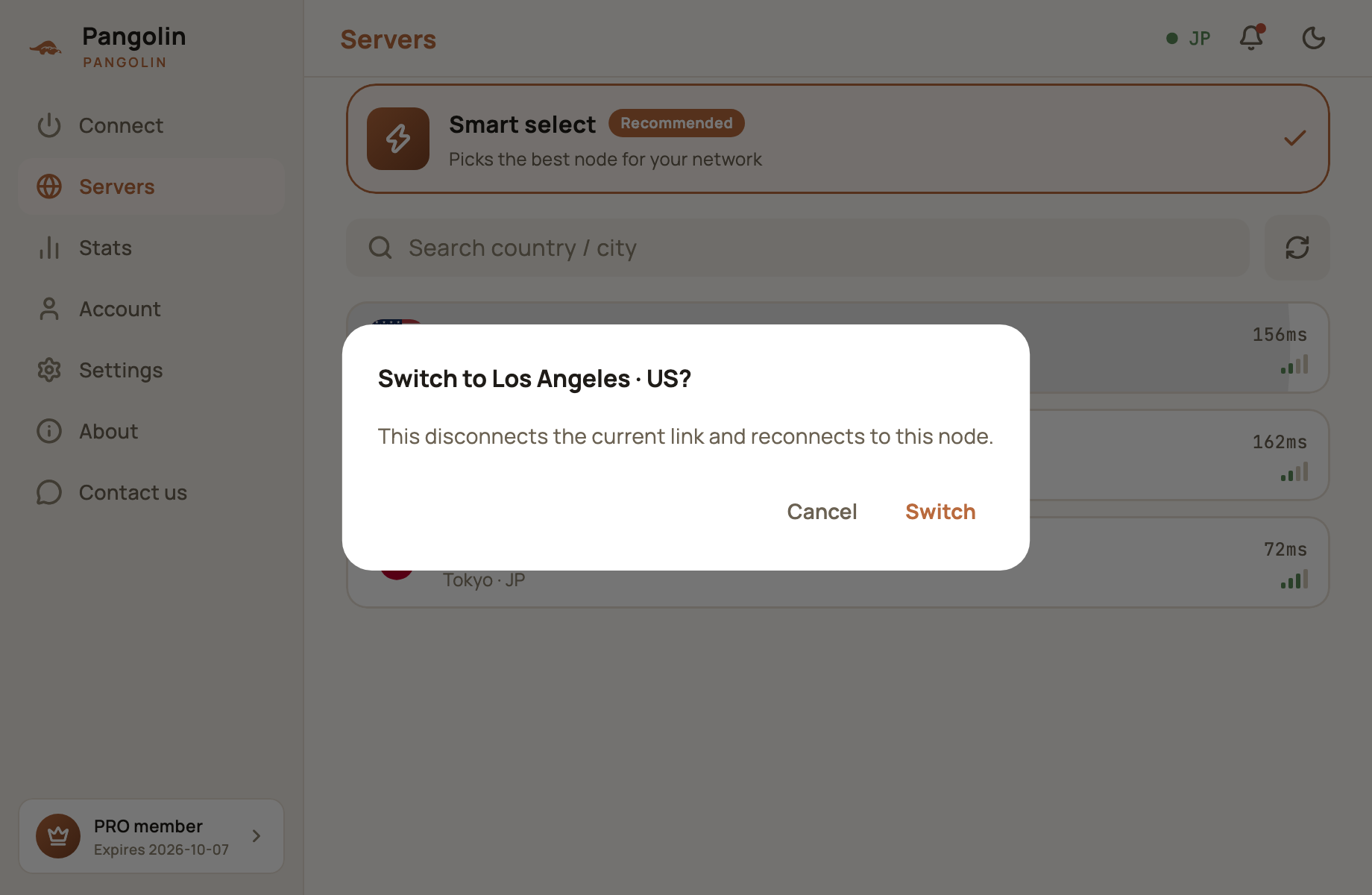
If you tap a different server while connected, the app asks you to confirm. Tap Switch and Pangolin disconnects and reconnects to the new server — expect a brief one-to-two-second gap.
When a server has problems
- With Smart select, if the current server stops responding, Pangolin switches automatically to another one and tells you “Current node unreachable — switched automatically”;
- If a server you picked yourself stops responding, you’ll see “Current node is unreachable — reconnect or switch node”;
- During brief network hiccups, the app shows “Network unstable, reconnecting…” and recovers on its own.
When to switch servers
| Situation | Try this |
|---|---|
| One site won’t load but everything else does | Switch servers and try again — some sites restrict certain regions or IP addresses |
| Things suddenly got slow | Tap refresh in the server list and pick one with lower ping |
| It’s slow in the evening | Cross-border links are busiest in the evening; a lower-ping server usually helps |
| You need a service in a specific country | Pick a server in that country |
What goes through the tunnel and what connects directly is decided by your routing rules — see Settings explained.
FAQ
Is lower ping always better?
Generally, lower ping means sites and apps load faster. But servers that are physically far away — like the US — naturally have higher ping, and can still be the more reliable choice for services in that country. Pick by what you're doing.
Does switching servers drop my connection?
Briefly, for a second or two — the app disconnects from the current server and then connects to the new one.
Which servers are there right now?
Currently Los Angeles (two servers) and Tokyo. The list in the app is always the up-to-date one, and we keep adding more.
Don't have Pangolin yet?
Available for iPhone / iPad, Mac, Windows and Android. New accounts get a free 7-day Pro trial.
Download the app