Contents
App updates: staying on the latest version
Pangolin checks for new versions on its own and lets you know at the top of the window. On Android, Windows and Mac you update in one tap inside the app; on iPhone / iPad you update through TestFlight. Your account and settings are never affected.
Automatic update checks
Pangolin checks for a new version a few seconds after it opens, and then once an hour — you don’t have to do anything.
When there’s a new version, a banner appears at the top of the window: New version vX.Y.Z available.
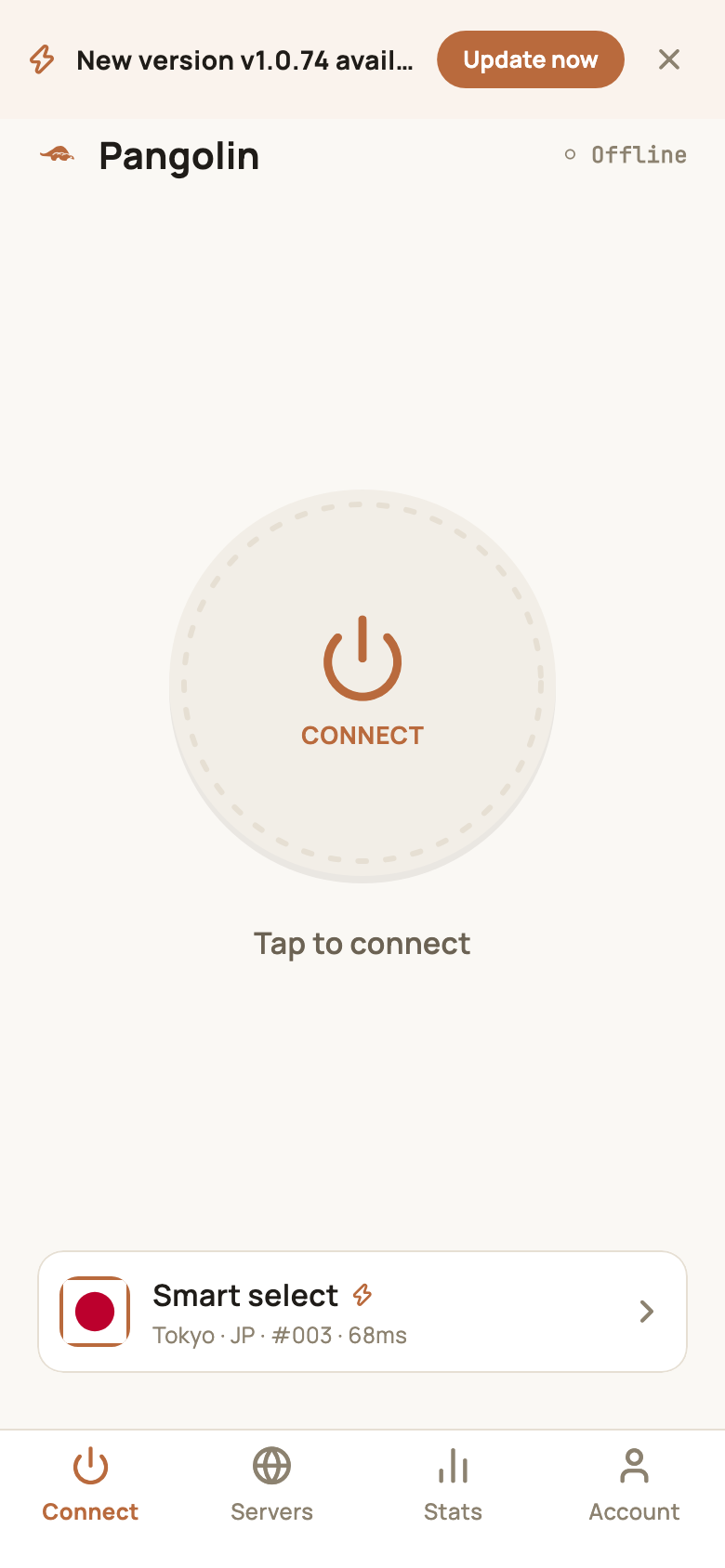
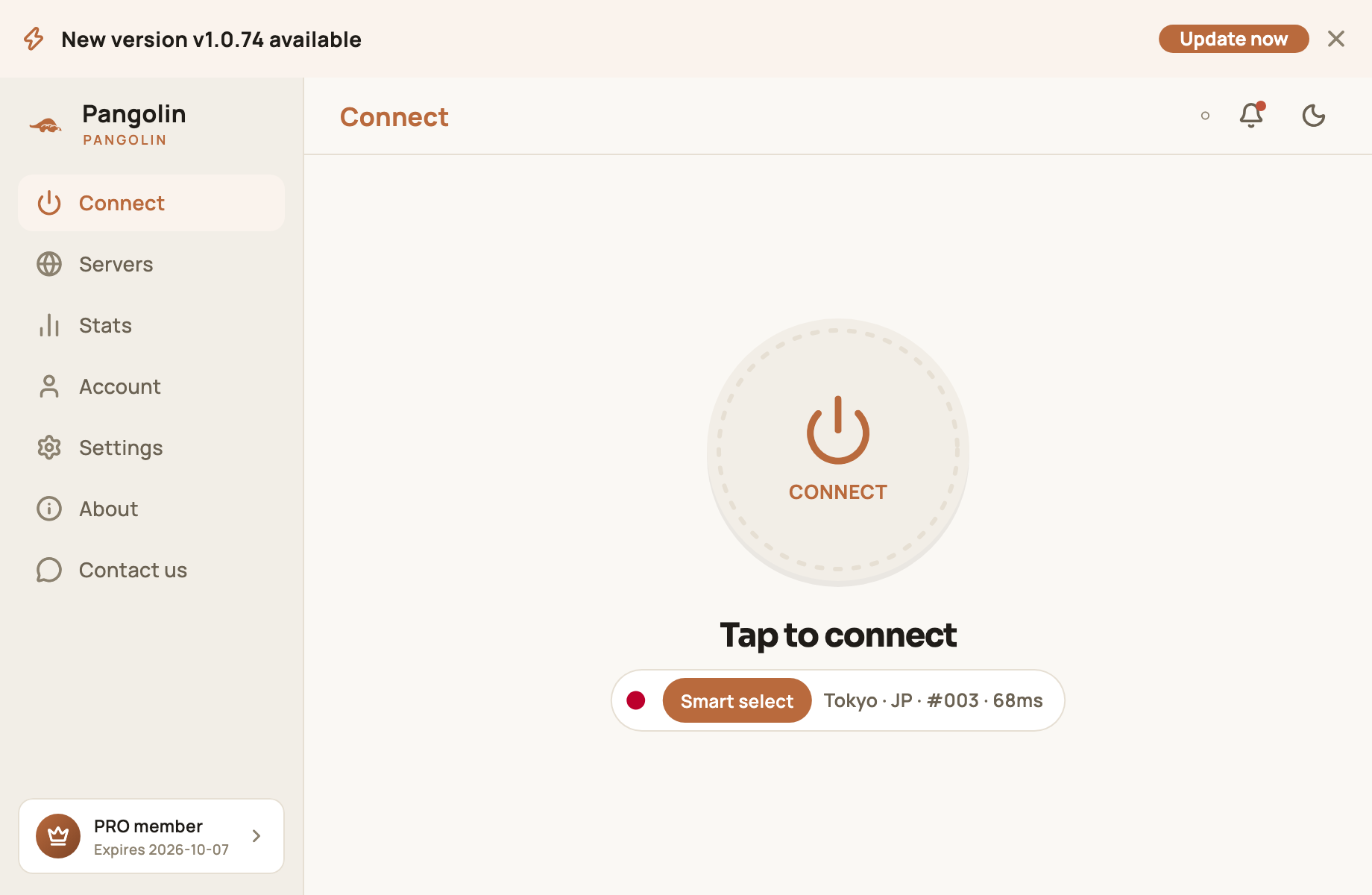
- Tap Update now to update (how it works on each platform is below);
- Tap × to skip this version for now. The banner goes away and everything keeps working.
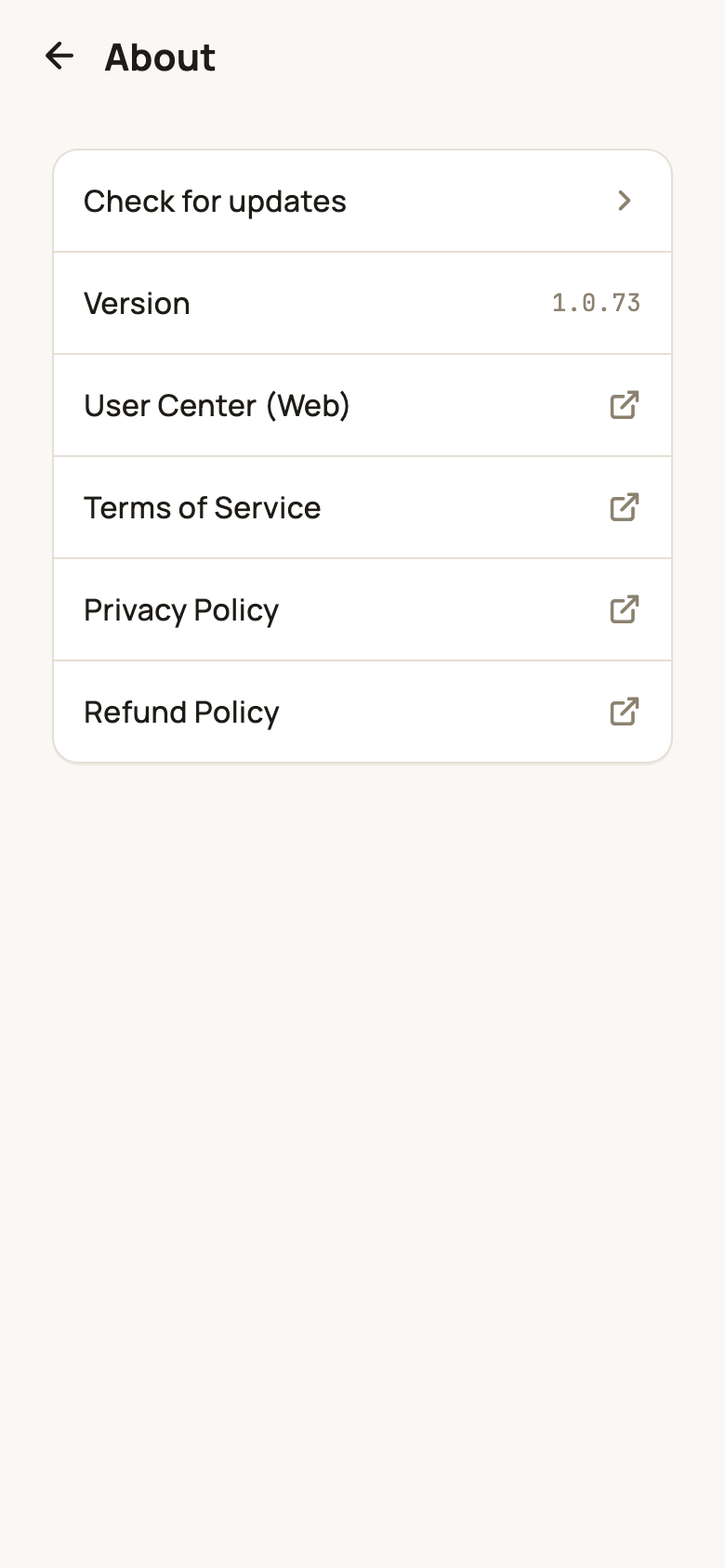
To check yourself: open the About page (Account → About on phones, in the sidebar on desktop) and tap Check for updates. You’ll either see “You are up to date”, or the update banner comes back at the top.
New versions are also announced in Notifications with an Update tag, and the notification has an Update now button too — see Usage stats and notifications.
How updating works on each platform
| Platform | After you tap Update now |
|---|---|
| Android | The app downloads the new APK and opens the system installer — tap Install. The first time, Android may ask you to let Pangolin install unknown apps; allow it |
| Windows | The app downloads the installer, runs it and closes the old version. Follow the installer to finish |
| Mac | The app downloads the new version, replaces the old one in Applications and reopens. Usually there’s nothing to do; occasionally macOS asks for your password once |
| iPhone / iPad | You’re taken to TestFlight — tap Update there |
While it downloads you’ll see the progress (“Downloading xx%”). Keep your connection up and leave the app open.
If the Mac can’t replace the app automatically, it opens the downloaded version in Finder and asks you to drag Pangolin into your Applications folder to replace the old one, then reopen it. Do that and you’re done.
iPhone / iPad: we recommend turning on Automatic Updates for Pangolin in TestFlight. Each TestFlight build is valid for 90 days, so staying current means it never expires on you — see Install on iPhone / iPad.
Required updates
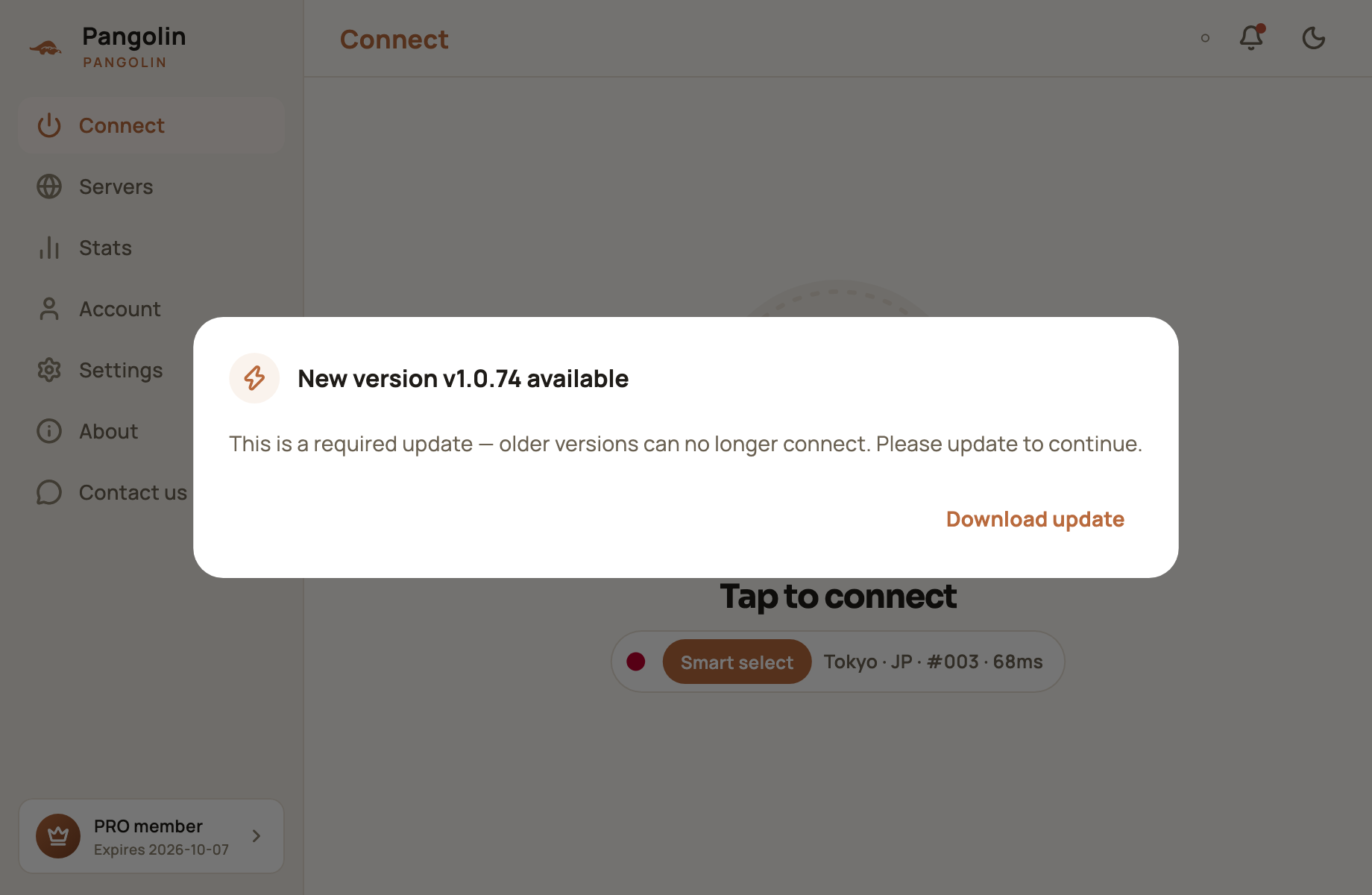
Once in a while — for example, when older versions can no longer connect — a new version is marked as required. The app then shows an update dialog you can’t dismiss, with only a Download update button; you’ll need to update to keep using Pangolin.
If updating fails
- If the in-app download fails, you’ll see “Download failed. Retry or download in your browser.” — tap Open in browser to download the installer instead;
- Or download the latest version from our download page and install it over the old one — your account and settings stay intact;
- Still stuck? Tell us through Contact us → Send feedback — see Can’t connect?.
FAQ
Do I need to sign in again after updating?
No. Updating never touches your account, membership, routing rules or other settings.
I closed the banner with ×. Can I still update?
Yes. Closing it only hides that version for now. Go to About → Check for updates to bring it back, and the banner reappears when an even newer version is released.
The in-app download failed. What now?
The error message has an Open in browser button that downloads the installer in your browser. You can also grab the latest version from our download page and install it over the old one.
Don't have Pangolin yet?
Available for iPhone / iPad, Mac, Windows and Android. New accounts get a free 7-day Pro trial.
Download the app